SonarQube Connector Migration Tool
If you already have migrated your instance from Server/DataCenter to Cloud, our SonarQube Connector for Jira Cloud Plugin needs the information that its Jira Server version had. So you can import all your "SonarQube Connector for Jira " issues with their values and all SonarQube Connector Panel configuration you had in yourJira Server instance, using the SonarQube Connector Migration tool.
How to export a file
1. First step
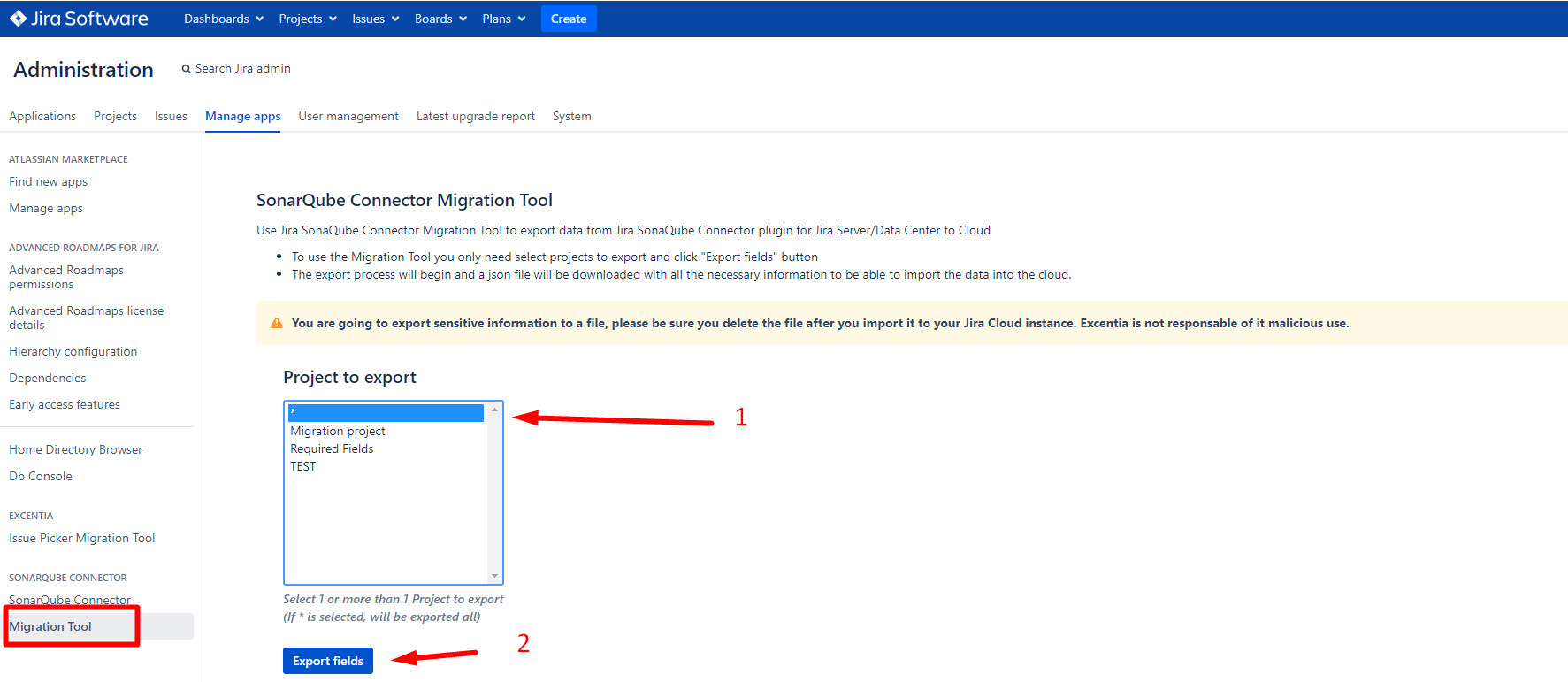
Go to your SonarQube Connector for Server/DataCenter Migration Tool menu and select which projects configuration do you want to export ( * to export all project's configurations and issues)
You are going to export private settings information to a file, as your SonarQube server URL or Sonar Token, you need to be Jira admin to have access to this tool
excentia is not responsible for malicious use of this file, use this tool only if you know what you are doing. Please delete the file after the import.

How to import a file
2. Second step.
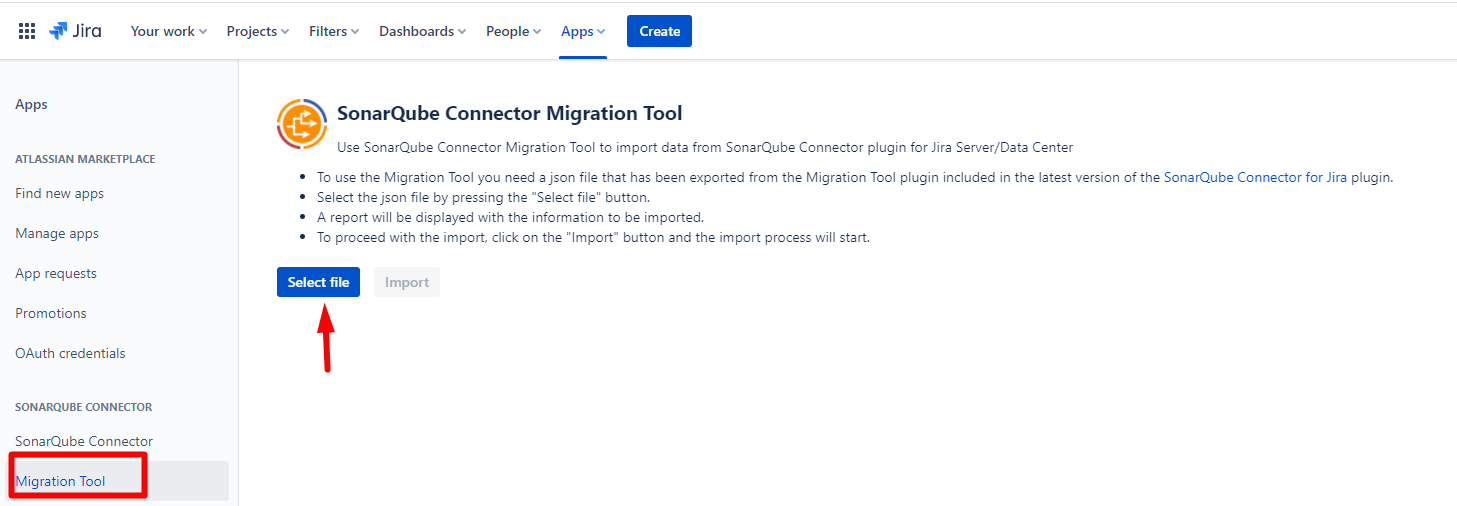
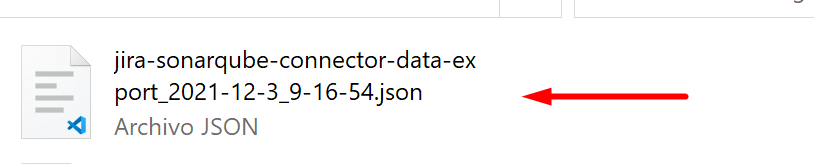
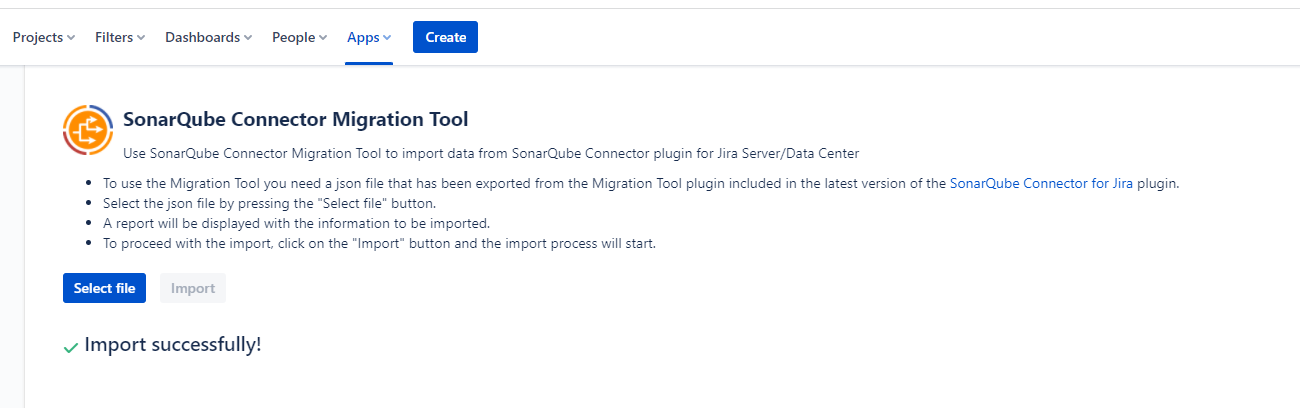
Go to your SonarQube Connector for Cloud Migration Tool menu and select the json exported file created before.
3. Third step.
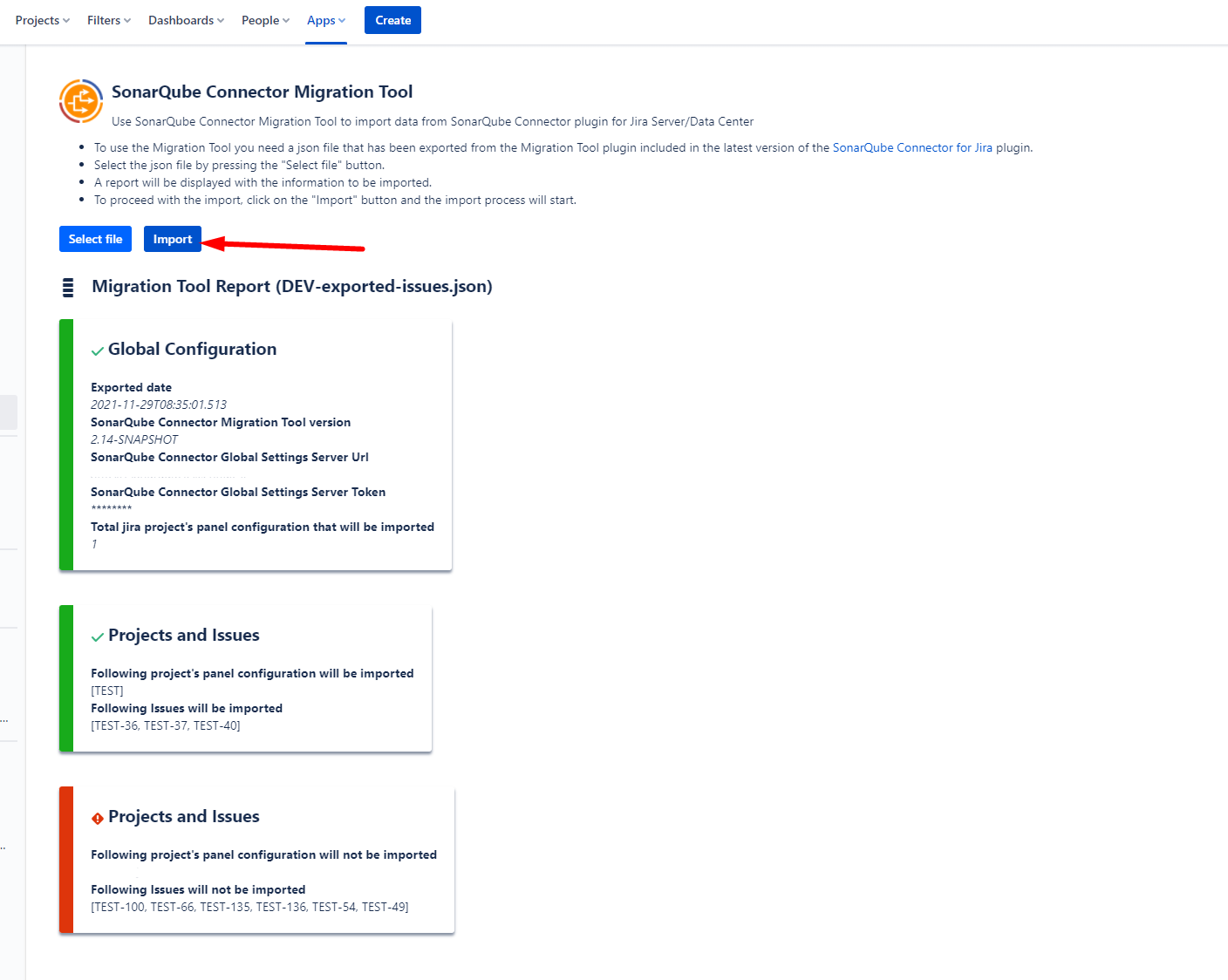
A report will be displayed with all the projects that will be imported, projects existing in exported migration file but not existing in Jira cloud instance, will NOT be imported.
Click import and wait until process is finished. Now you have migrated your SonarQube Connector configuration to Cloud!
4. Fourth step.
Please delete Json exported file after the import finished successfully
-
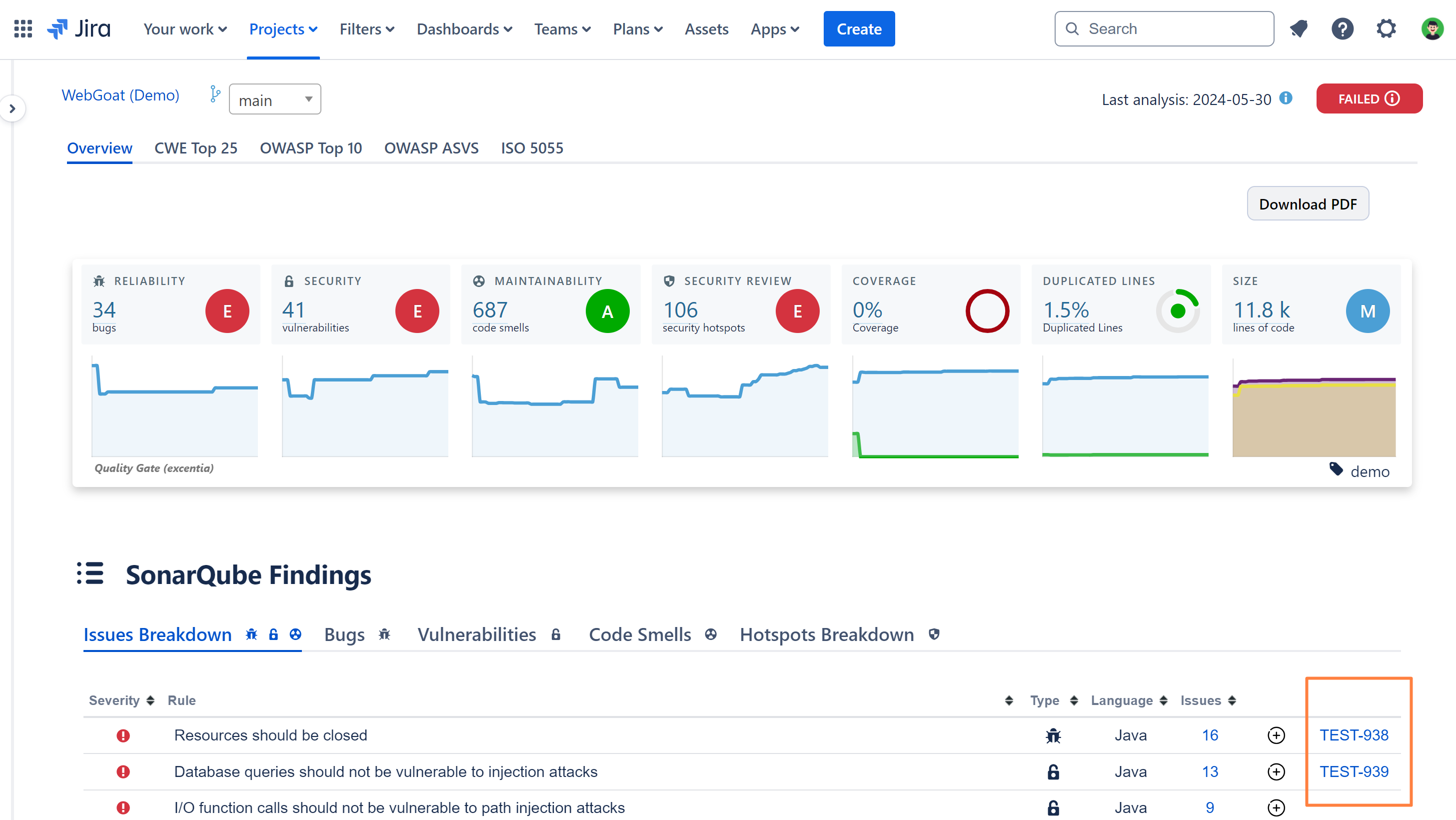
Now imported issues will appear in your sonarqube connector panel:
If there is any problem you can contact us with this link.