First steps
Learn how to install and configure the app SonarQube Connector for Jira
Install SonarQube Connector for Jira
Get the SonarQube Connector for Jira app from the Atlassian Marketplace. Click Try free to start a trial or Buy now to purchase a license for SonarQube Connector for Jira. You'll be prompted to log into MyAtlassian and the connector begins downloading. Enter your details and click Generate license on MyAtlassian. Click Apply license.
Setup SonarQube Connector for Jira Cloud
You can configure a global server to share the configuration on all Jira projects. This is very useful if your Sonar instance is the same for all your Jira projects.
Connection
You can configure a global server to share the configuration on all Jira projects. This is very useful if your SonarQube instance is the same for all your Jira projects.
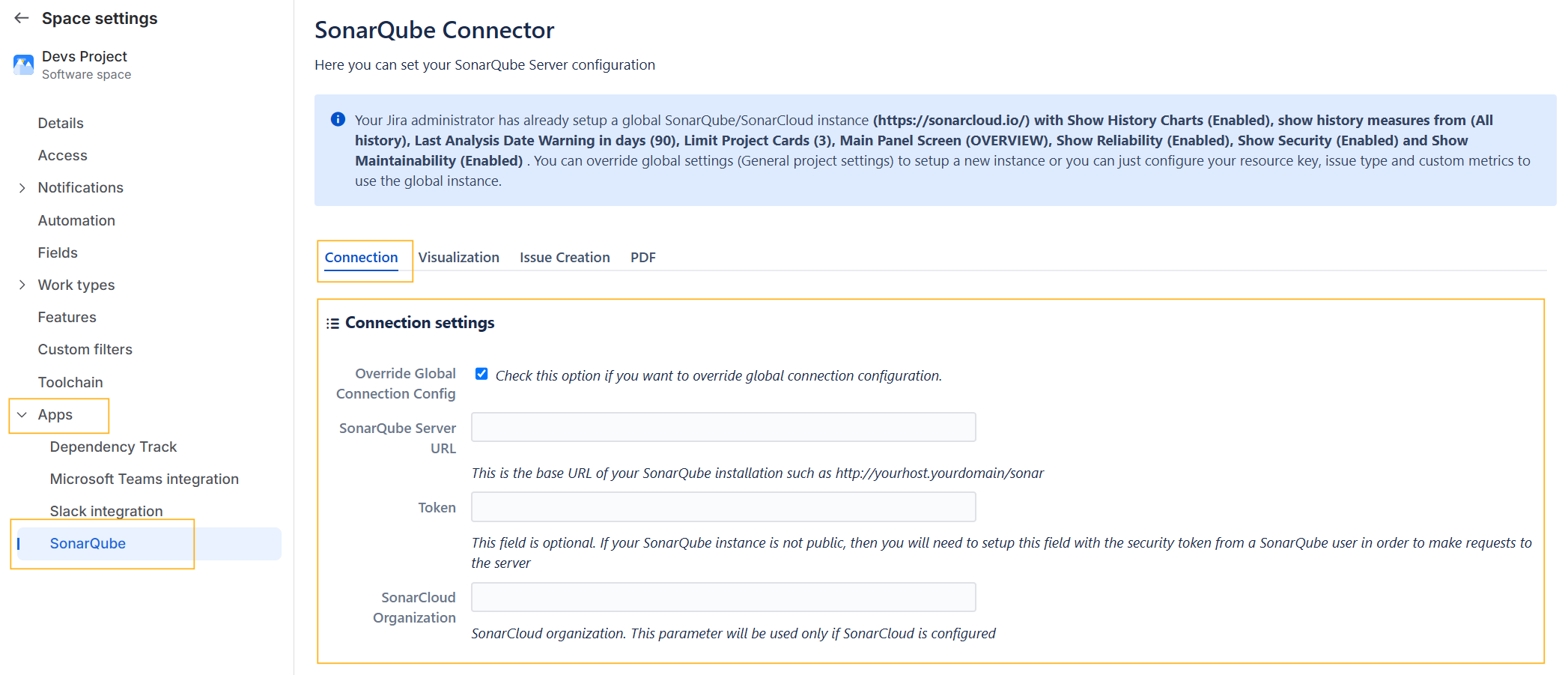
There are different options:
-
Override Global Connection Configuration: Check this option when you want to override global connection configuration
-
SonarQube Server URL: this is server base URL for your SonarQube installation
-
Token: this field is optional. If your SonarQube instance is not public, then you will need to setup this field with the security token from a SonarQube user.
-
The token type must be USER token type. You can find more information about SonarQube tokens here: https://docs.sonarsource.com/sonarqube-server/10.7/user-guide/managing-tokens/
-
-
SonarCloud Organization: this parameter is needed if you have configured SonarCloud as SonarQube Server URL.
Visualization
-
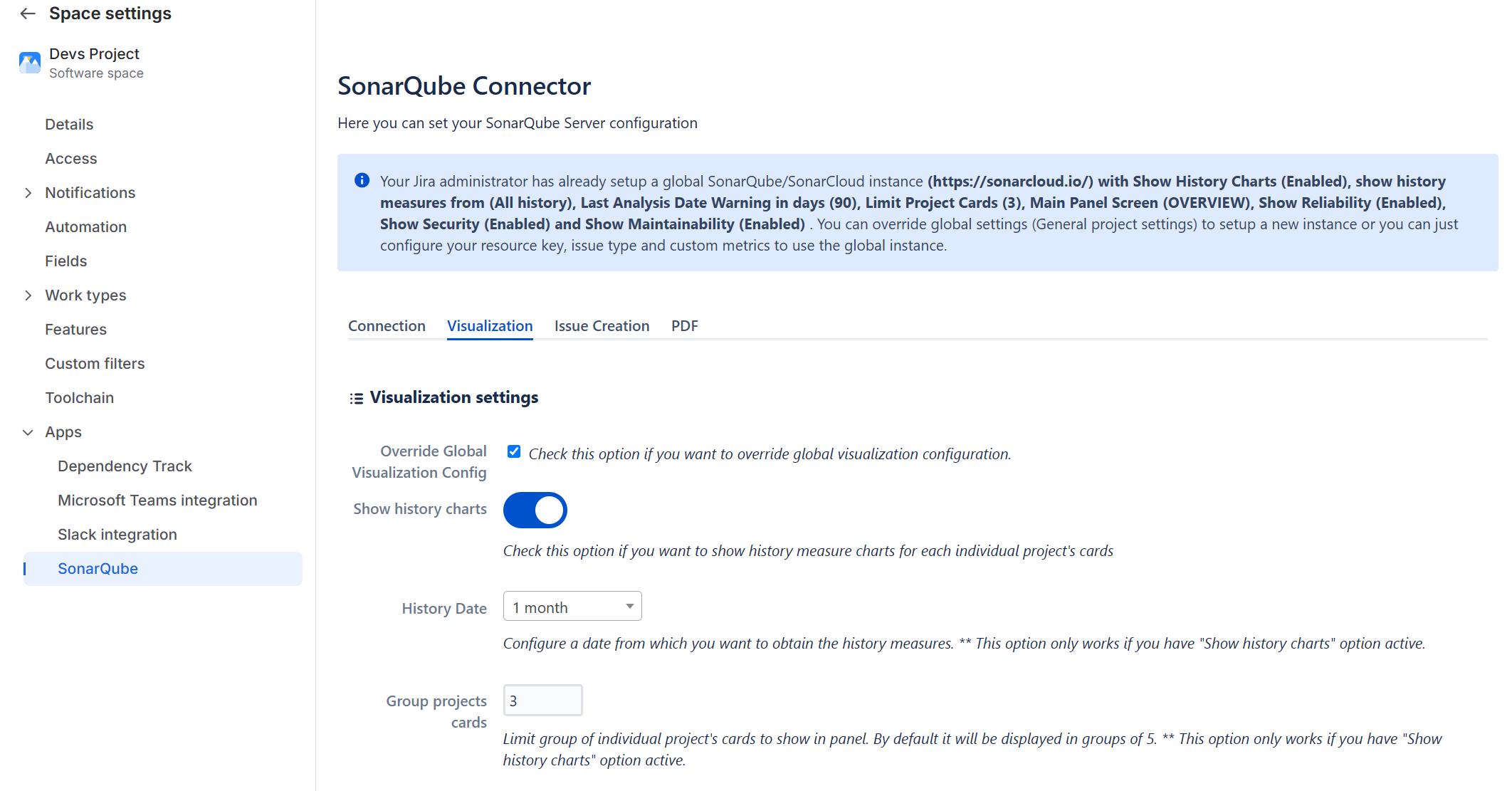
Show history charts : you can enable/disable this option if you want to show history measure charts.
-
History date : you can select a date from which you want to obtain de history measures.
-
Group project cards : the number of of individual project cards displayed in the plugin panel.
-
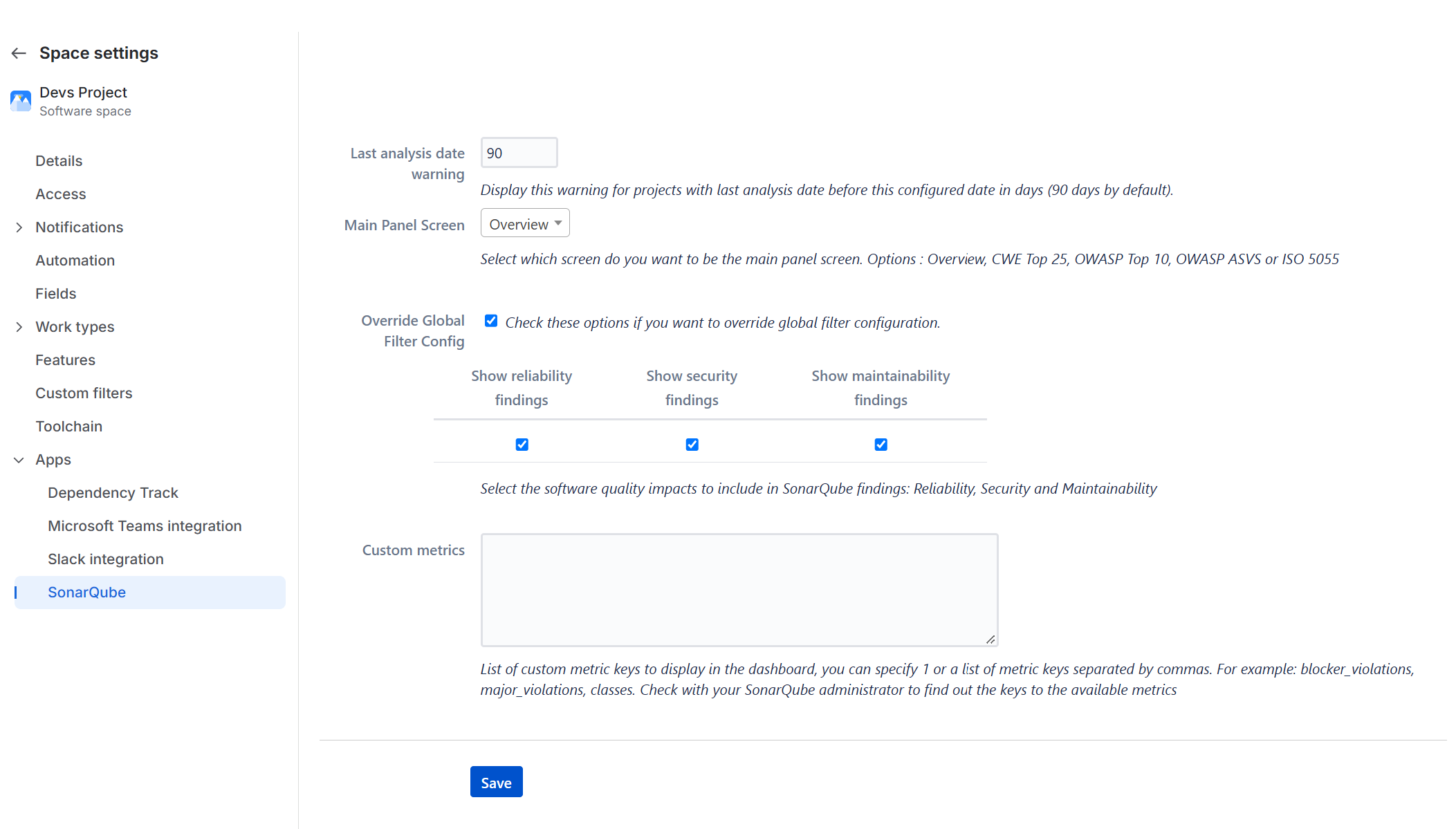
Last analysis date warning : this option will show a warningn for projects with last analysis date befor this configured date in days (90 days by default).
-
Main Panel Screen : you can select which screen do you want to be main screen (Overview, CWE Top 25, OWASP Top 10, OWASP ASVS or ISO 5055).
-
Override Global: Check this if you want to override global filter configuration.
-
Filter configuration : Select which SonarQube issuetypes are displayed in Sonarqube Issues breakdown.
-
Custom metrics: You can list custom metric keys to display in the dashboard.
Issue creation settings
-
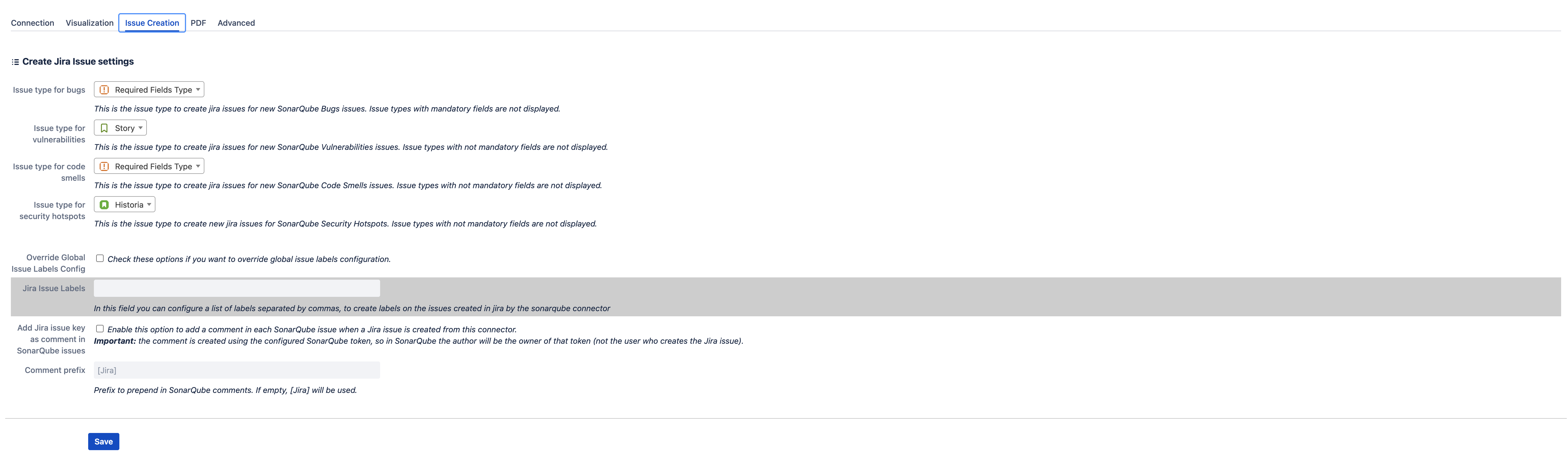
Issue type For Bugs: this is the default issue type to create new Jira issues based on SonarQube Bugs.
-
Issue type For Vulnerabilities: this is the default issue type to create new Jira issues based on SonarQube Vulnerabilities.
-
Issue type For Code Smells: this is the default issue type to create new Jira issues based on SonarQube Code Smells.
-
Issue type For Hotspots: this is the default issue type to create new Jira issues based on SonarQube Security Hotspots.
-
Jira Issue Labels : here you can configure a list of labels, to add it to the Jira issues created with Sonarqube Connector.
-
Add Jira issue key as comment in SonarQube issues: When an issue is created in Jira via the connector, the app can automatically add a comment to the SonarQube issue with a direct link to the created Jira issue. This allows you to quickly identify that the issue is already being managed in Jira and access the ticket with a single click.
-
Comment prefix: This allows you to customize the initial text of the comment published on SonarQube. If no value is specified, the default prefix [Jira] is used.
PDF Settings
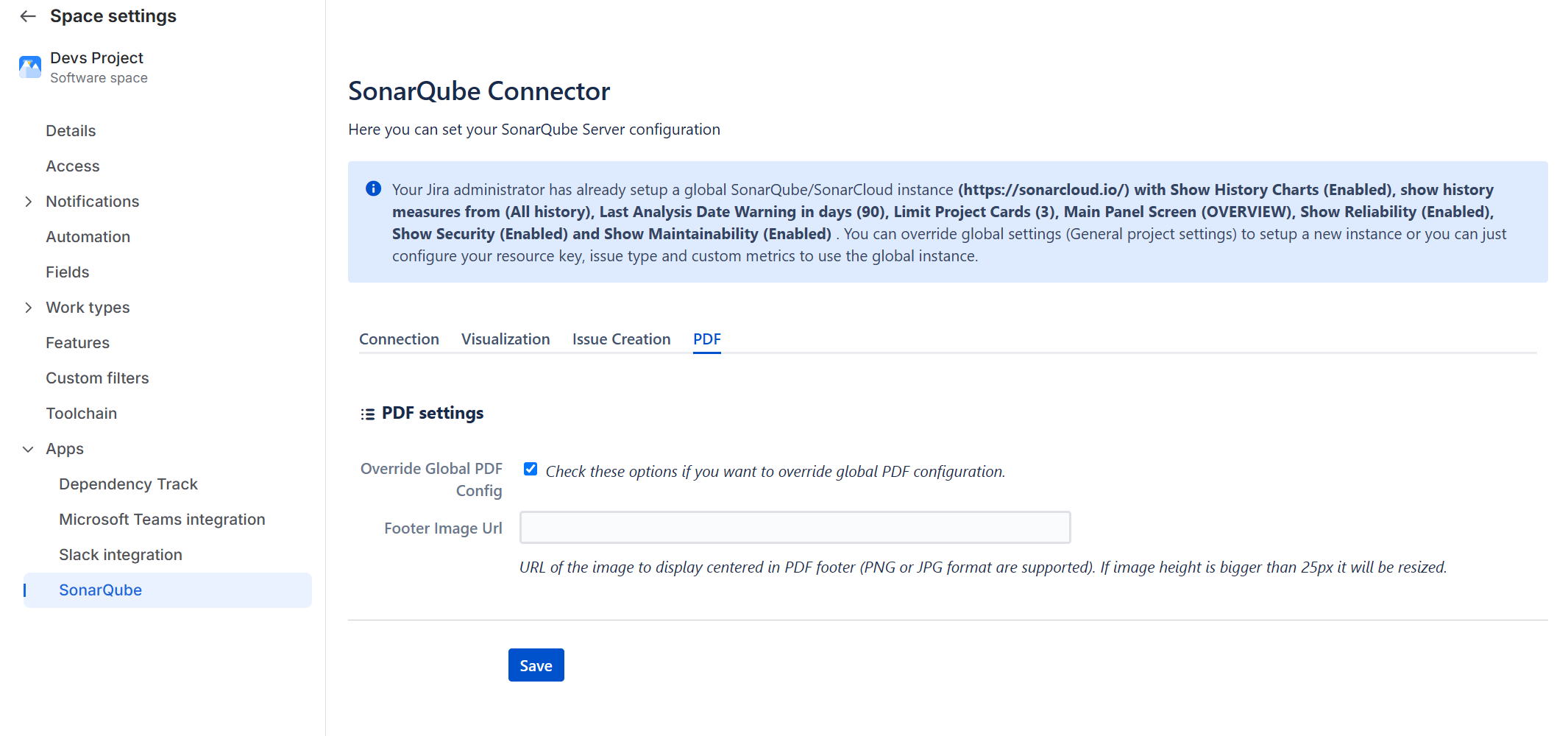
-
Footer Image Url : You can add custom image url to add it to the PDF files created with SonarQube Connector for Jira.