How to download a SonarQube security report from Jira
Need to share your code security findings with your team or prepare evidence for a review? With SonarQube Connector for Jira, you can generate and download PDF security reports from Jira based on OWASP Top 10, CWE Top 25, OWASP ASVS and ISO 5055.
This guide shows you where to find the reports, how to select a standard and what to check before sharing the document.
SEE HOW TO DOWNLOAD THE REPORTPublished by excentia ·
Prepared by the team at excentia, developer of SonarQube Connector for Jira. The screenshots show the Jira Cloud interface; the location of options may vary by version.
How do you download a SonarQube security report as a PDF from Jira?
Open your Jira space or project, go to SonarQube and select Security Reports. Choose the standard you need and, if a version selector is available, its version. Then click Download PDF to save the report for the selected view.
What you need to generate a security report from Jira
- SonarQube Connector for Jira installed with an active license or trial. You can find the app on the Atlassian Marketplace.
- A configured connection to SonarQube Server or SonarQube Cloud, with valid credentials and access to the projects you want to review.
- Your Jira space or project linked to the relevant SonarQube project.
- A code analysis available in SonarQube and access to the connector panel in Jira.
If you have not set up the integration yet, follow the steps to install the connector and connect SonarQube to Jira. Administrator permissions may be required to install the app or change its configuration.
Which security reports can you download?
The app lets you export PDF reports organized by these four standards. Choose the one that matches the purpose of your review:
| Report | What it shows | When to use it |
|---|---|---|
| OWASP Top 10 | Findings grouped by categories of web application security risks. | To share analysis results related to OWASP Top 10 with your team. |
| CWE Top 25 | Code weaknesses associated with the selected CWE Top 25 list. | To review types of weaknesses and guide remediation. |
| OWASP ASVS | Analysis evidence mapped to application security verification requirements. | To support a technical review that uses ASVS as a reference. |
| ISO 5055 | Structural software quality weaknesses, including those related to security. | To extend the review to reliability, efficiency and maintainability. |
The version of the standard matters: two OWASP Top 10 or CWE Top 25 reports may use different categories. When comparing results, keep the scope and the version of the standard consistent.
How to generate and download a security report step by step
1. Open SonarQube in your Jira space
Go to the Jira space or project where the connector is configured and select the SonarQube tab. Check that you are viewing the projects you need to include in your review.
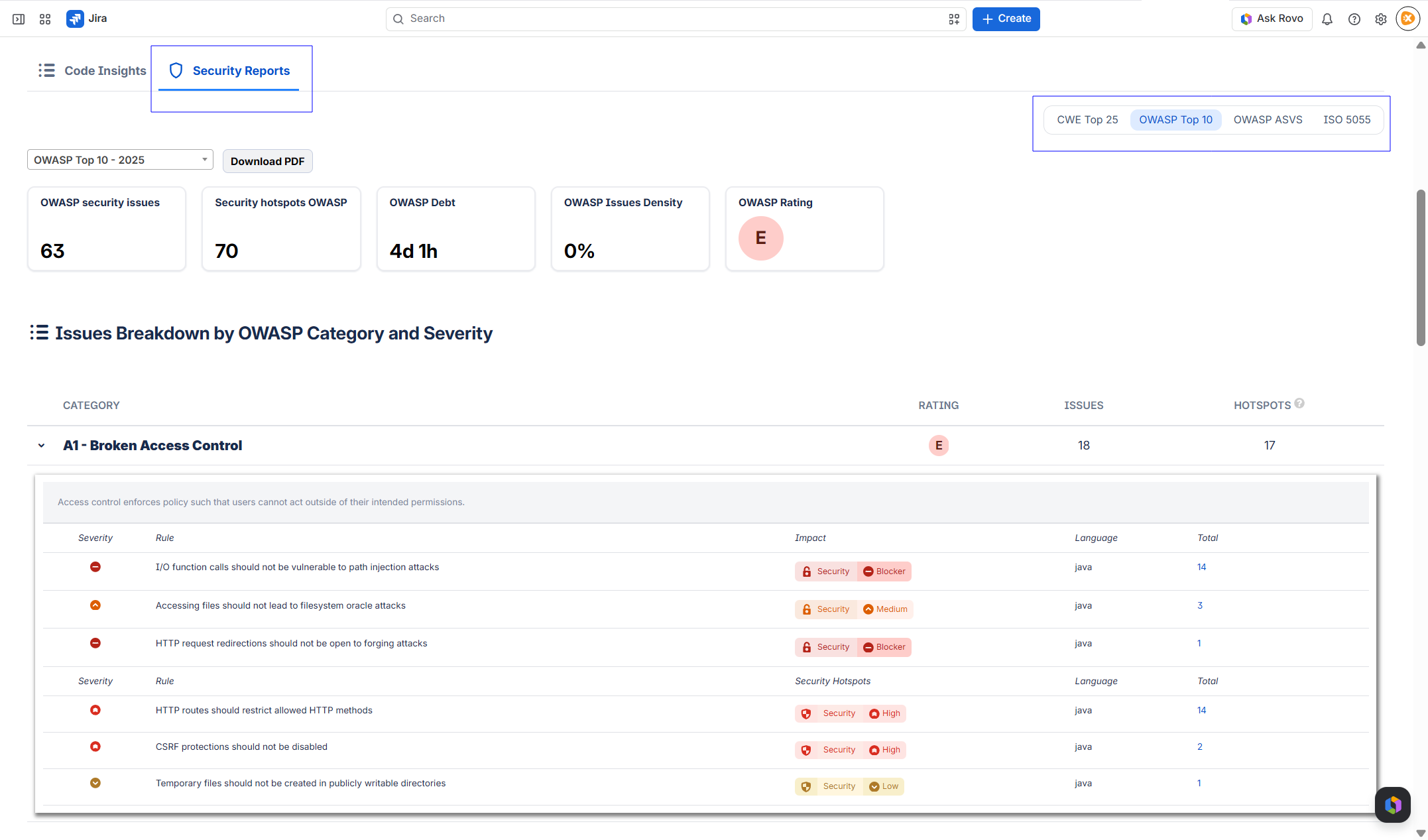
2. Go to Security Reports
In the connector panel, select Security Reports to find reports organized by standard. For a general code quality summary, see the guide to downloading a general PDF report.
3. Select the standard and its version
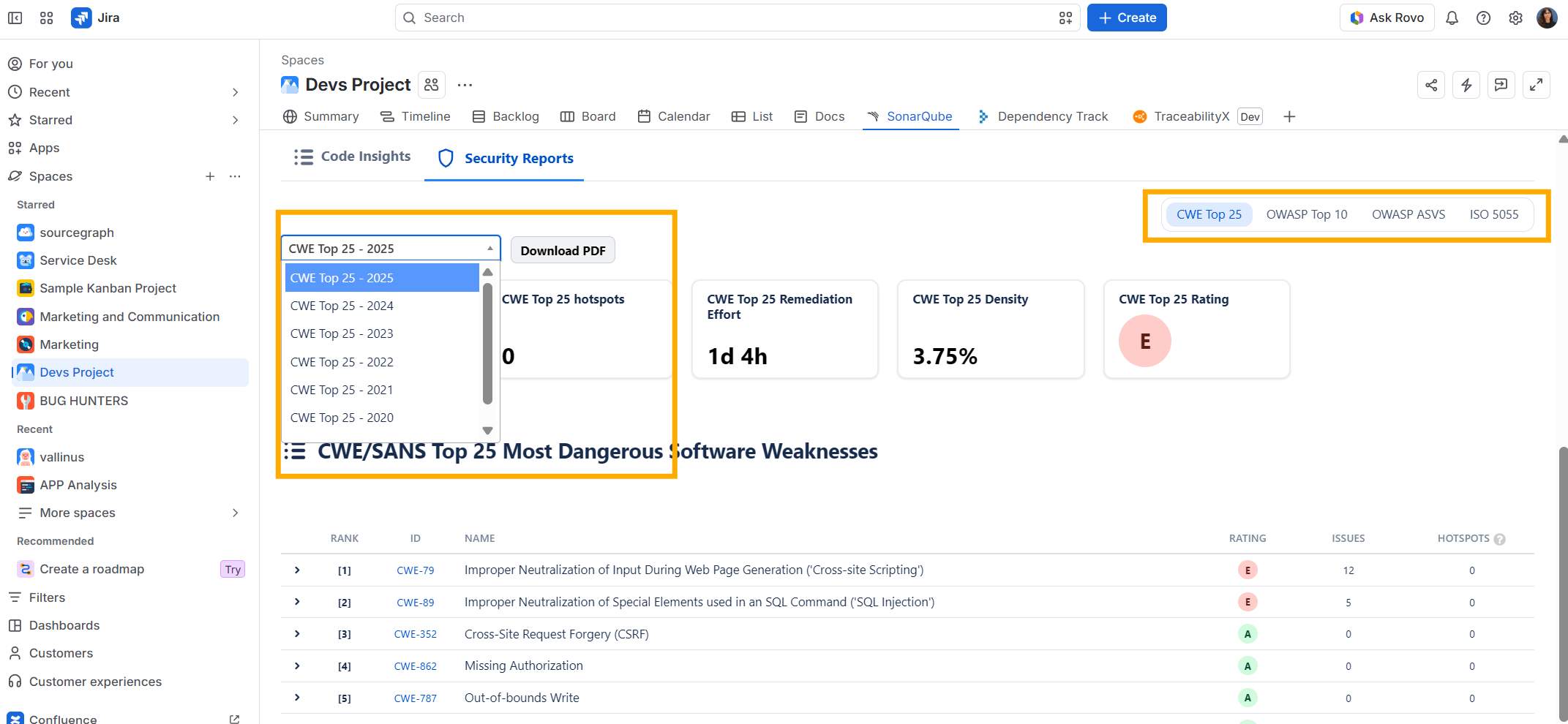
Click OWASP Top 10, CWE Top 25, OWASP ASVS or ISO 5055. If the view includes a version dropdown, choose the version you need before exporting.
For example, to download a SonarQube CWE Top 25 report from Jira, select that view and the available year that matches your review. The screenshot shows the version selector next to the download button.
4. Click Download PDF
Click Download PDF and save the generated document. Repeat the process in another view if you need a PDF for a different standard: select OWASP Top 10, for example, to export that report.
5. Review the PDF before sharing it
Open the file and check that it matches the project, standard and version you selected. Also check the date of the source analysis in SonarQube if you need to document a specific release.
To organize your evidence, you can save the file with a name such as project-owasp-top-10-date.pdf and attach it to the relevant Jira work item if you have permission to add attachments.
How to interpret the security report
Review the categories and findings to decide what to investigate with your team. Keep in mind that security issues and Security Hotspots need to be handled differently:
- A vulnerability or security issue indicates a problem detected by the analysis that requires a fix.
- A Security Hotspot highlights security-sensitive code that needs a review to determine whether a change is necessary. Its presence alone does not mean there is a confirmed vulnerability.
SonarQube may use different terminology depending on whether it runs in Standard Experience or MQR Mode. Learn more in Sonar's documentation on Security Hotspots.
The report provides evidence of the available analysis. It does not, on its own, demonstrate full compliance with OWASP ASVS or ISO 5055 or replace other security checks. A category with no findings does not guarantee that there are no risks: the results depend on the code analyzed and the rules enabled.
What to check if the report is missing or has no data
I cannot find the SonarQube or Security Reports tab
Ask your Jira administrator to check that the app is installed and that your space has linked SonarQube projects. Also check your access to the space and the connector version used by your instance.
The panel is empty or shows a connection error
Check the SonarQube URL, the validity of the credentials and their access to the configured projects. Confirm that the project key is correct and that a completed analysis is available in SonarQube.
The report shows no vulnerabilities or Security Hotspots
Check the analysis scope and the security rules enabled in the quality profile. Sonar's security report documentation explains why a project may have no findings, for example, if no applicable rules are enabled for the language being analyzed.
Download PDF is missing or the download does not finish
Make sure you are in the view for the standard you want to export. If the option is still missing or the download fails, note your Jira and connector versions, the selected standard and the error message. Share these details with excentia support so the team can investigate.
Frequently asked questions about SonarQube security reports in Jira
Can I download an OWASP Top 10 PDF report from Jira?
Yes. In SonarQube Connector for Jira, open Security Reports, select OWASP Top 10, choose the available version you need and click Download PDF.
Do I need administrator permissions to download the report?
Installation and configuration may require administrator permissions. To view and export reports, check that you can access the connector panel and the configured project data. If you cannot see the option, ask your administrator to review your instance's permissions.
Is this the same as downloading a report directly from SonarQube?
This guide covers exporting from Jira through a Marketplace app. SonarQube's native export is a separate feature with its own requirements depending on the product and edition.
Does it work with SonarQube Server and SonarQube Cloud?
The connector supports connections to both products. The available information depends on your integration, the analysis performed and the compatibility of the versions in use. Check the connector documentation for your installation.
Can I add my company logo to the report?
Yes. You can configure the report footer logo in PDF Report Settings, globally or for a specific space. Follow the steps to customize the logo in PDF reports.
Bring SonarQube security findings into Jira
Review findings by standard and share the PDF report with the people who need to assess the project's status.
Learn more in the SonarQube Connector for Jira documentation.
Need help with the integration? Contact excentia.